Boards
A board is a workspace: one project, one team, one list of things to do. It holds areas, and the areas hold cards. Everything else in LokalBoards hangs off a board.
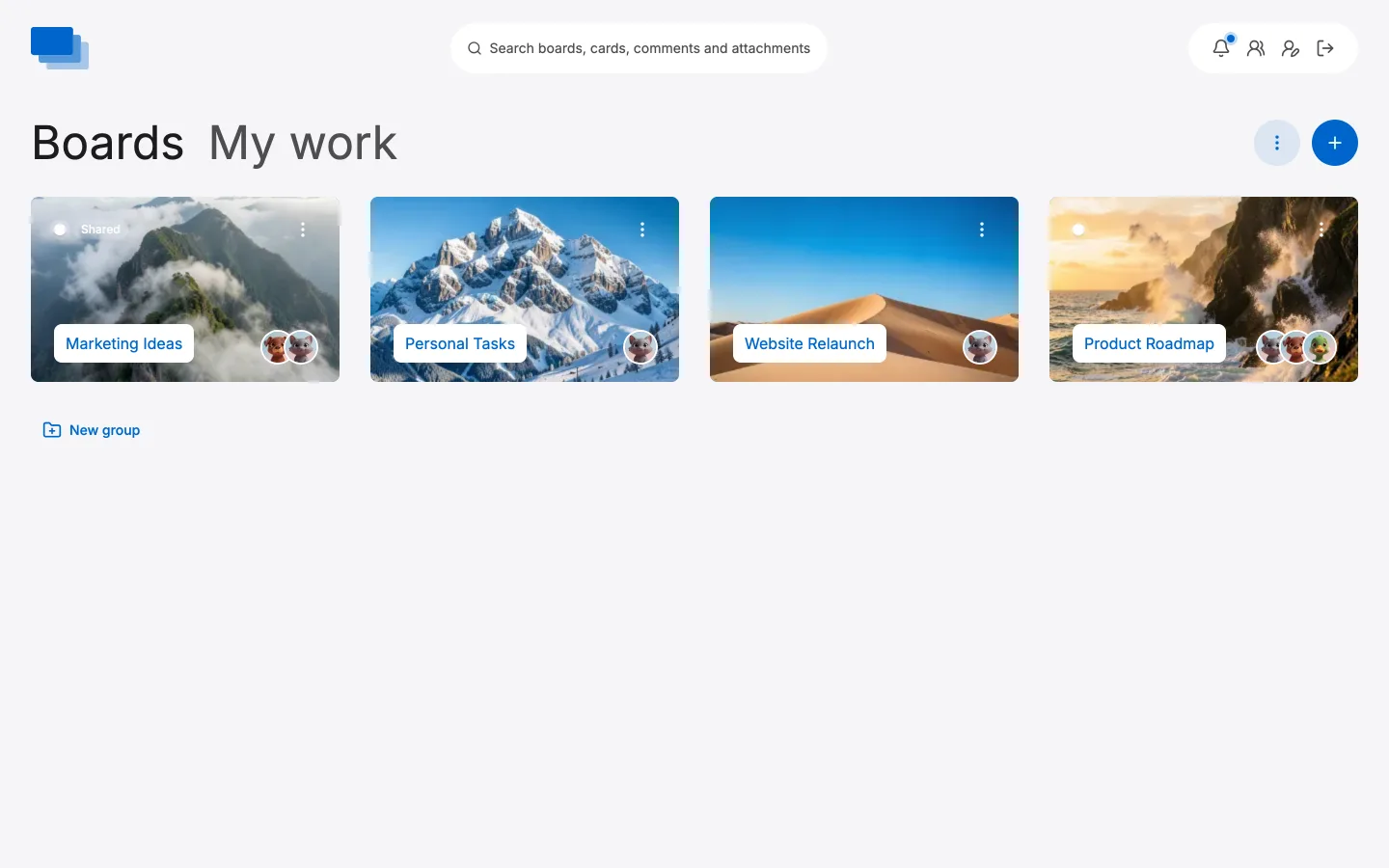
The dashboard lists every board you own or have been invited to. Boards you were invited to carry a Shared badge, and the avatars on a tile are the people who can see it.
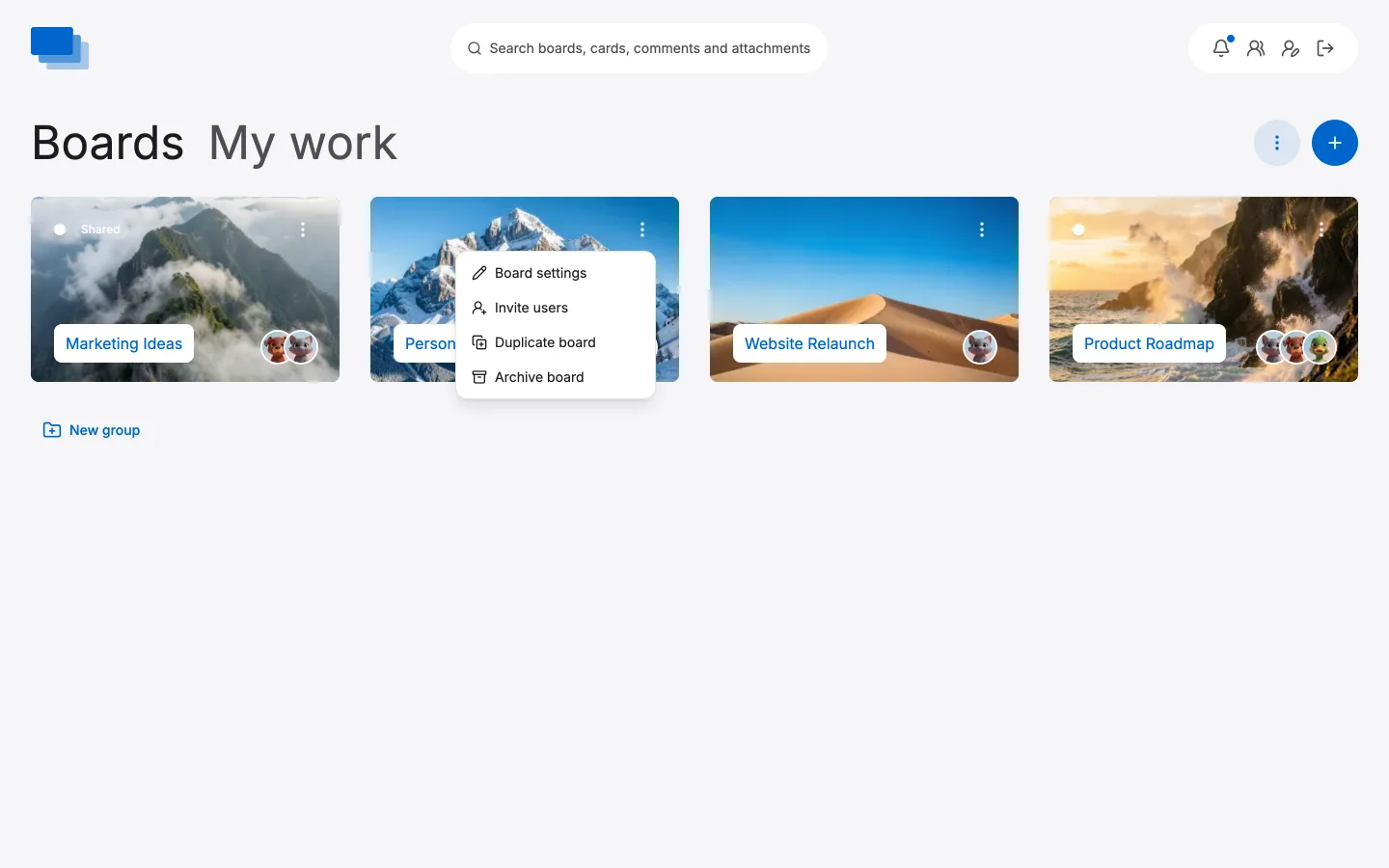
Every tile carries a ⋮ of its own, holding the same things the board's own page offers: its settings, who is on it, and deleting it — or, for a board somebody shared with you, leaving it. Renaming a board or inviting somebody to it does not need the board to be opened first.
Creating a board
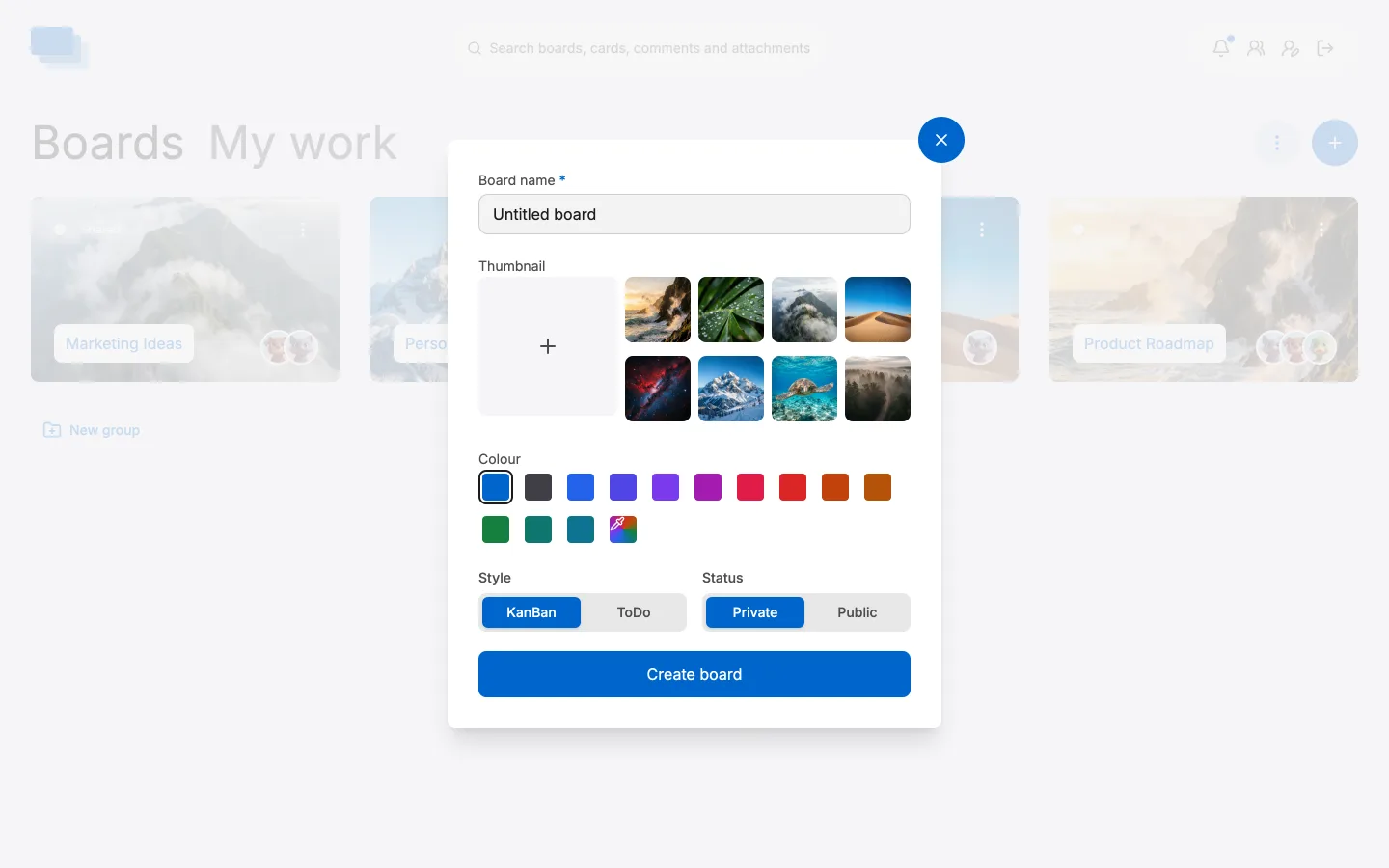
Click the blue + at the top right. Give the board a name and save — you can change everything else later.
A section with nothing in it — a dashboard with no boards yet, or a group you have just made — shows a + tile of its own instead, and a board made from that one lands in that section.
The ⋮ button beside it holds Import boards, for bringing boards over from Trello, Wekan or Nextcloud Deck — see Bringing boards over.
Use New group at the bottom of the dashboard to sort boards into groups once you have more than a screenful.
Board options
Click the ⋮ on the board's tile, or open the board and click the ⋮ at the top right. Either reaches the same options.
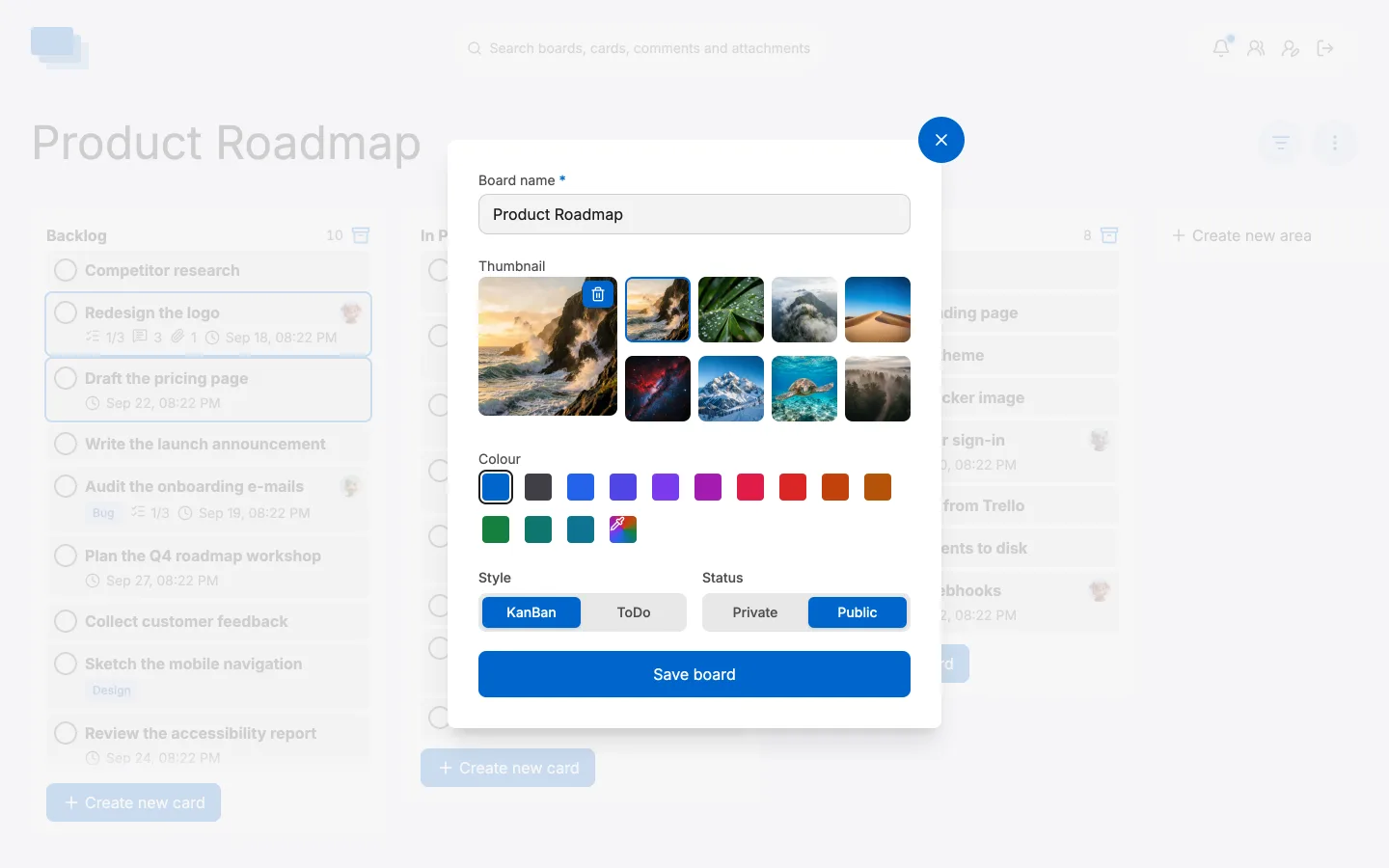
Thumbnail and colour decide how the board's tile looks on the dashboard. Pick one of the supplied images or upload your own, or pick one of the twelve colours — or mix your own with the pipette. A tile shows one or the other: choosing a colour clears the image, and choosing an image clears the colour. Whichever you pick, the board's name, the avatars and the badges stay readable, because the tile works out whether it needs light or dark text for the colour you chose.
Style switches between KanBan, where areas stand side by side as columns, and ToDo, where they stack full width as lists. It is the same board and the same cards either way — see Areas for when each one helps.
Status decides who can reach the board:
- Private — only you and the people you invite.
- Public — anyone with the link can open it.
Everyone looking at the board sees the change as it is saved, and so does every dashboard that has a tile for it — a renamed board is renamed everywhere, and a new colour arrives on the tile without anybody reloading.
Sharing a board
Click ⋮ › Permissions on a board to see who has access and to add someone.
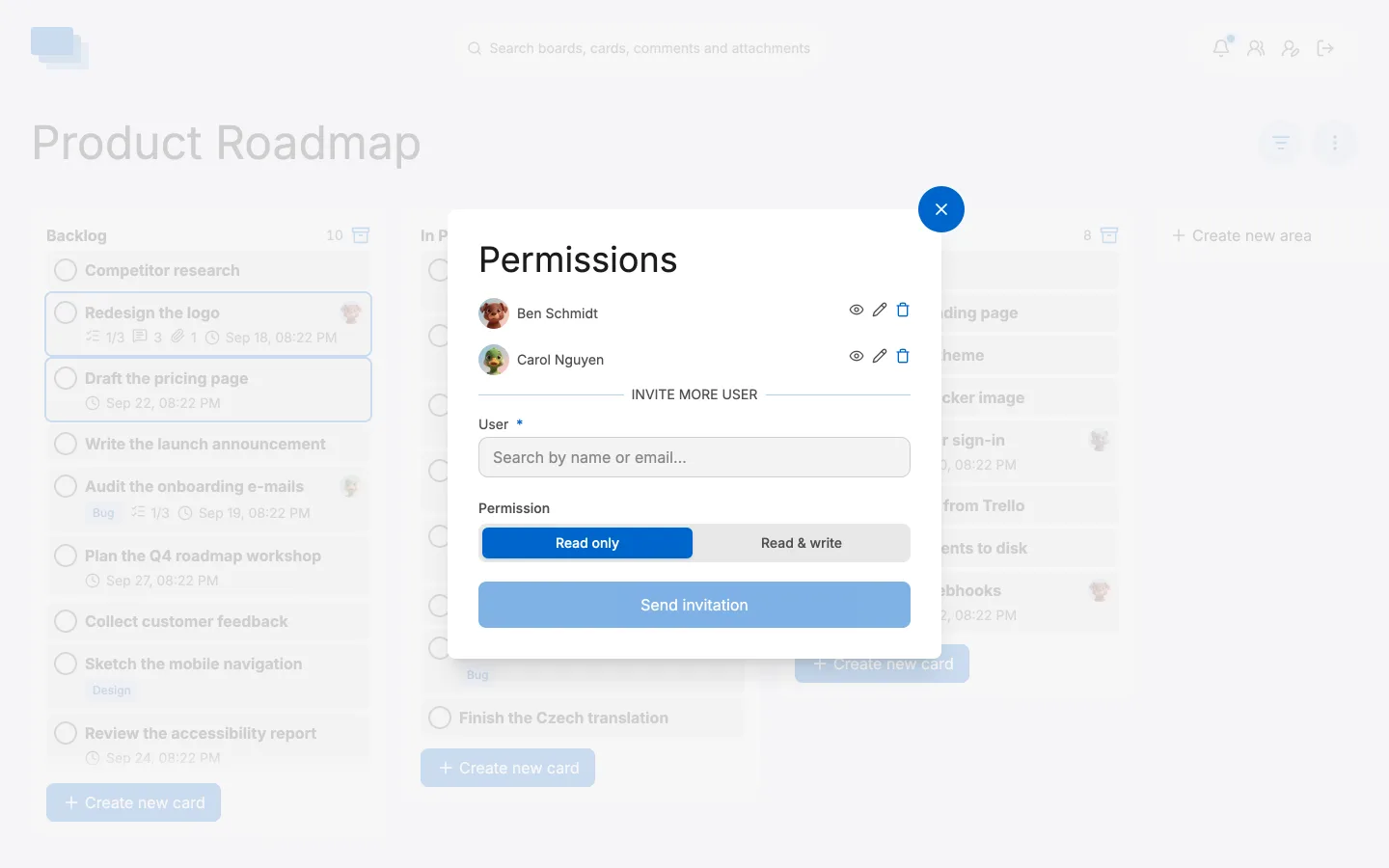
Search for the person by name or e-mail address. If they already have an account here, pick them from the list. If they do not, type their full e-mail address: LokalBoards sends them an invitation to create an account, and signing up through that link joins them to this board with the access you chose. The link works once and expires after 14 days, and it carries the address it was sent to — nobody can use it to register under a different one.
An invitation works even on an instance with public signup switched off, which is the point: the board owner decides who joins, not the sign-up form.
Choose what they may do:
- Read only — they can open the board and follow it, but change nothing.
- Read & write — they can move cards, write comments and edit anything on it.
The list at the top shows everyone who already has access, with an eye or a pencil for their permission. Use the pencil to change it and the bin to take it away again.
Everyone sees it at once
Boards are live. When somebody moves a card, renames an area, ticks something off or writes a comment, everyone looking at that board sees it happen — no refresh, no stale screen, and no two people quietly editing different versions of the same thing.
If you are not at your desk when it happens, an e-mail goes out once an hour with everything that changed on the boards you are on.
Duplicating a board
⋮ › Duplicate board, on the board or on its tile on the dashboard, makes a new board with the same columns and none of the cards. Give it a name — the original's is offered, selected, so typing replaces it — and the copy opens ready to fill in.
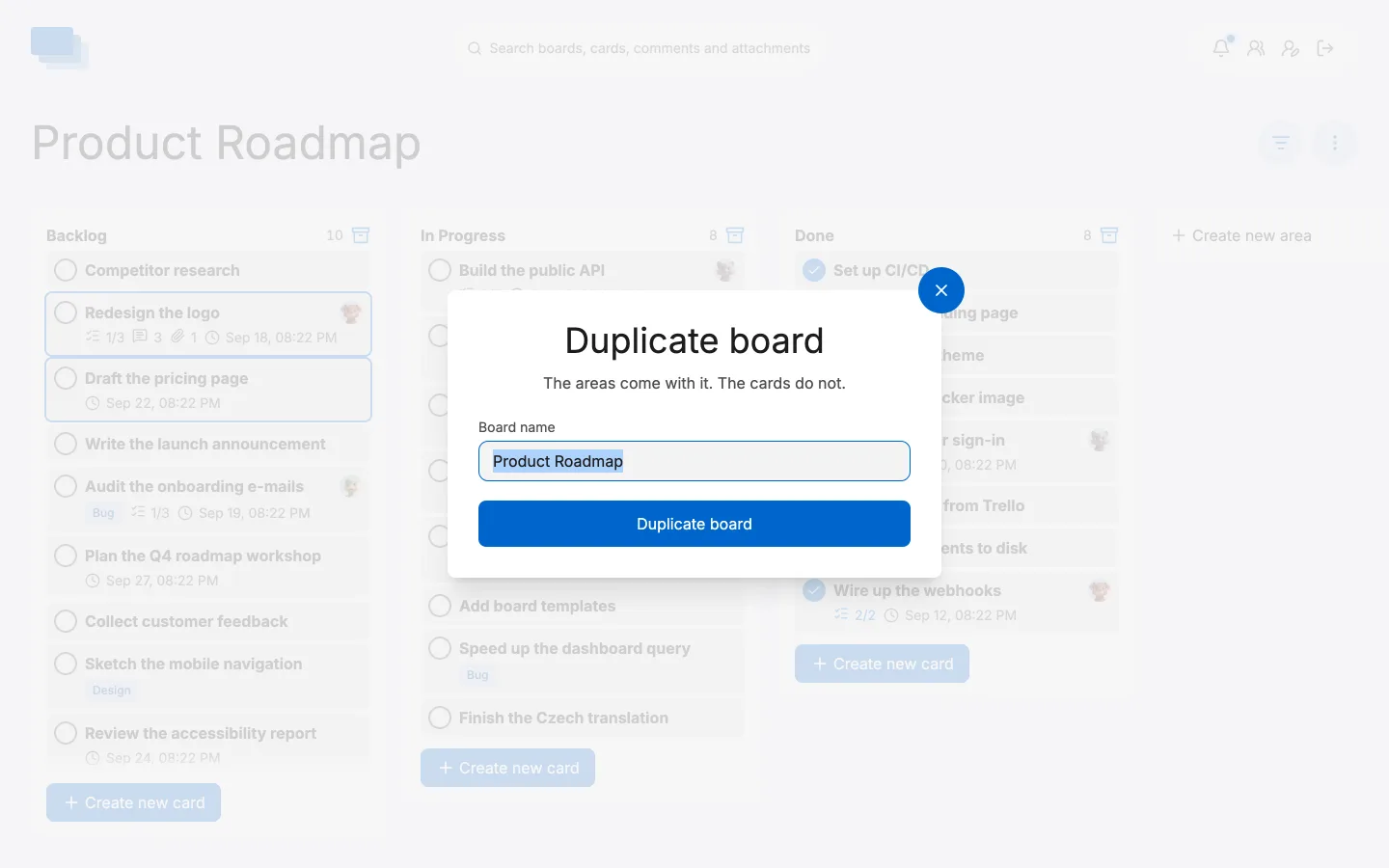
Most boards start the same way, with the same three or four columns, and this is the part of setting one up that is worth skipping. The copy keeps the style and the colour, is yours whatever the original was, and starts private. Archived columns are left behind, being no longer part of the board's shape.
Exporting a board
⋮ › Export board downloads the board as a zip. Inside is one JSON file
holding every area and every card — descriptions, labels, due dates, the people
on each, reminders, comments and history — and an attachments folder with
the files the cards hold, pictures pasted into descriptions and comments
included. Archived areas and cards are in it too, each with the date it was
archived.
Anybody who can see a board can export it. Everything in the file is something they could already open card by card, and the export only saves them the clicking. People appear by name; email addresses are not in it.
The JSON is meant to be read — by a script, by another tool, or by you in a few
years. Every path in it is relative to the zip, so an attachment's file can be
followed as it stands. The format is described under
Export.
As a spreadsheet
⋮ › Export as spreadsheet downloads the board's cards as a CSV file for Excel, Numbers or LibreOffice — one row per card, in the order the board shows them: its area, title, status, due date and how it repeats, the people on it, its labels, checklist progress, comment and attachment counts, the description, and a link back to the card. Archived cards are left out; the file is the board as it stands.
It opens with a double-click. The headings are in the instance's language, and
so is the separator: a comma on an English instance, a semicolon on the others,
which is what a spreadsheet in those languages expects. A title that starts
like a formula — with =, +, - or @ — is written as text, so opening the
file never runs anything.
To export every board at once, together with the database, see Exporting everything.
Bringing boards over
⋮ › Import boards on the dashboard recreates boards from another tool as private boards of yours. What arrives: the lists as areas, the cards in order with their descriptions, checklists, labels, due dates and whether they were done, and the comments, each with the name of whoever wrote it. The people themselves are not carried over — nobody on the other tool has an account here — and neither are archived lists or cards.
- Trello, a public board: paste its link.
- Trello, a private board: in Trello, open the board's menu and choose
Print, export and share → Export as JSON, then choose that file. Trello's
export links to a card's files rather than carrying them, and for a private
board only somebody signed in to Trello can open those links. You are, so
the dialog asks you to lend the import that for a moment: Allow in
Trello opens Trello's own page asking whether LokalBoards may read your
boards for an hour; allow it, paste the token Trello then shows, and choose
Import with the files. The token is used for those downloads and kept
nowhere, and it expires on its own an hour later. Choose Import without
the files instead and each card lists its files as links under its
description, to download by hand while the board is still in Trello.
Either way, pictures pasted into a description or a comment are stored here like pictures pasted into a LokalBoards card, and the text points at them — nothing on the board keeps depending on Trello. Trello's export holds only the 1,000 most recent actions, so on a busy board the oldest comments are not in it.
The step with the token needs a Trello API key on the instance — see below. Without one, a private board imports with its files as links. - Wekan: in the board's menu, Export board → JSON, then choose that file. The file carries the board's attachments inside it, and they come along too. A Wekan card counts as done when its due date was marked complete. Swimlanes have no counterpart here, so every card goes into its list whichever swimlane it was in.
- Nextcloud Deck: Deck has no export button. An administrator runs
occ deck:export <user>on the Nextcloud server, which writes every board that user owns into one file; choose that file and each board comes across as a board of its own. Deck leaves attachments out of that file, so they cannot come along.
Which tool a file came from is read from the file, so there is nothing to pick.
A Trello API key
Trello hands out tokens to apps it knows by an API key. It takes a few minutes to get one, once per instance:
- Open trello.com/apps/admin, choose New, and create a Power-Up — call it after your instance; it only ever exists to issue the key, and is never added to a board.
- In the Power-Up, open the Trello Auth tab and choose Generate a new API Key.
- Put it in the instance's configuration and restart:
NUXT_PUBLIC_TRELLO_API_KEY=<the key>
The key is not a secret — it only names the app asking for a token, and it is in the page's source — so it needs no more care than the instance's address. The tokens are the secret, and LokalBoards never keeps one. The importers are tested against real exports from Wekan (September 2026) and from Nextcloud Deck 1.19; a file from a much older version may be refused rather than half read.
Filtering what you see
The funnel beside the ⋮ narrows the board to the cards you want to look at: by label, by who it is assigned to, by whether it is overdue or due today or due this week or has no date at all, and by open or done. Picking two labels widens the answer — cards wearing either one — while picking a label and an assignee narrows it.
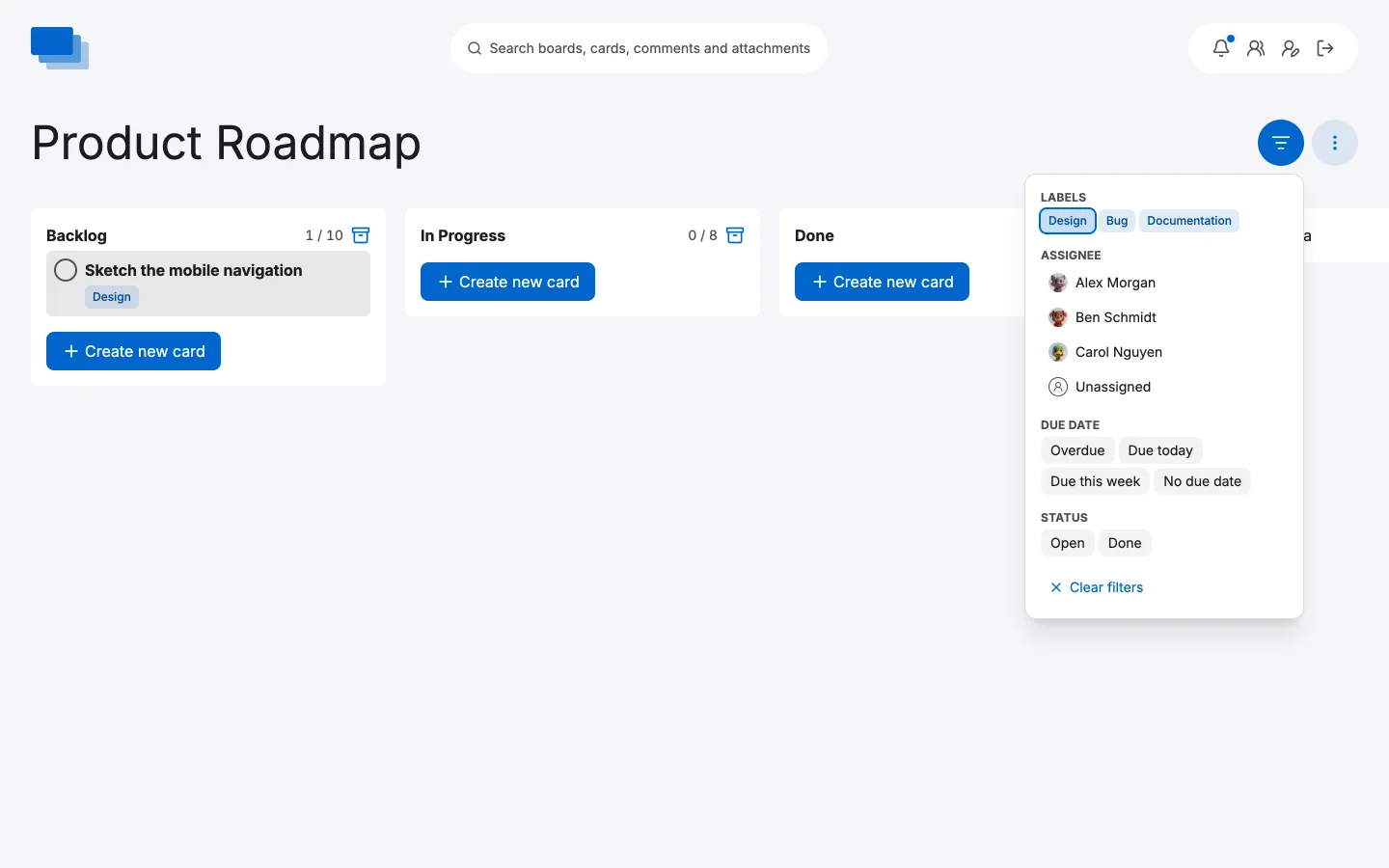
Each area's header counts its cards, and while a filter is on it counts both: 3 / 12 means three of its twelve cards match. Nothing is moved or changed; cards you filtered out are simply not drawn, and Clear filters brings them back.
The filter is kept in the address, so a filtered board is a link. Copy it from the address bar and send it, and whoever opens it sees the board filtered the same way — as long as they can see the board at all. Picking and unpicking does not pile up in the browser's history, so Back still takes you off the board rather than through every chip you tried.
If you would rather write the link than click it together:
| Parameter | Values |
|---|---|
labels | Label ids, separated by commas. |
assignee | Account ids, separated by commas, or none for cards nobody is on. A card on several people shows for any one of them. |
due | overdue, today, week or none. |
status | open or done. |
A value the board does not recognise is ignored rather than refused, so a link with one typo in it still opens the board, filtered by the rest.
Archiving a board
⋮ › Archive board, then confirm. The board leaves your dashboard and everybody else's, keeping its areas, cards, comments and attachments exactly as they are.
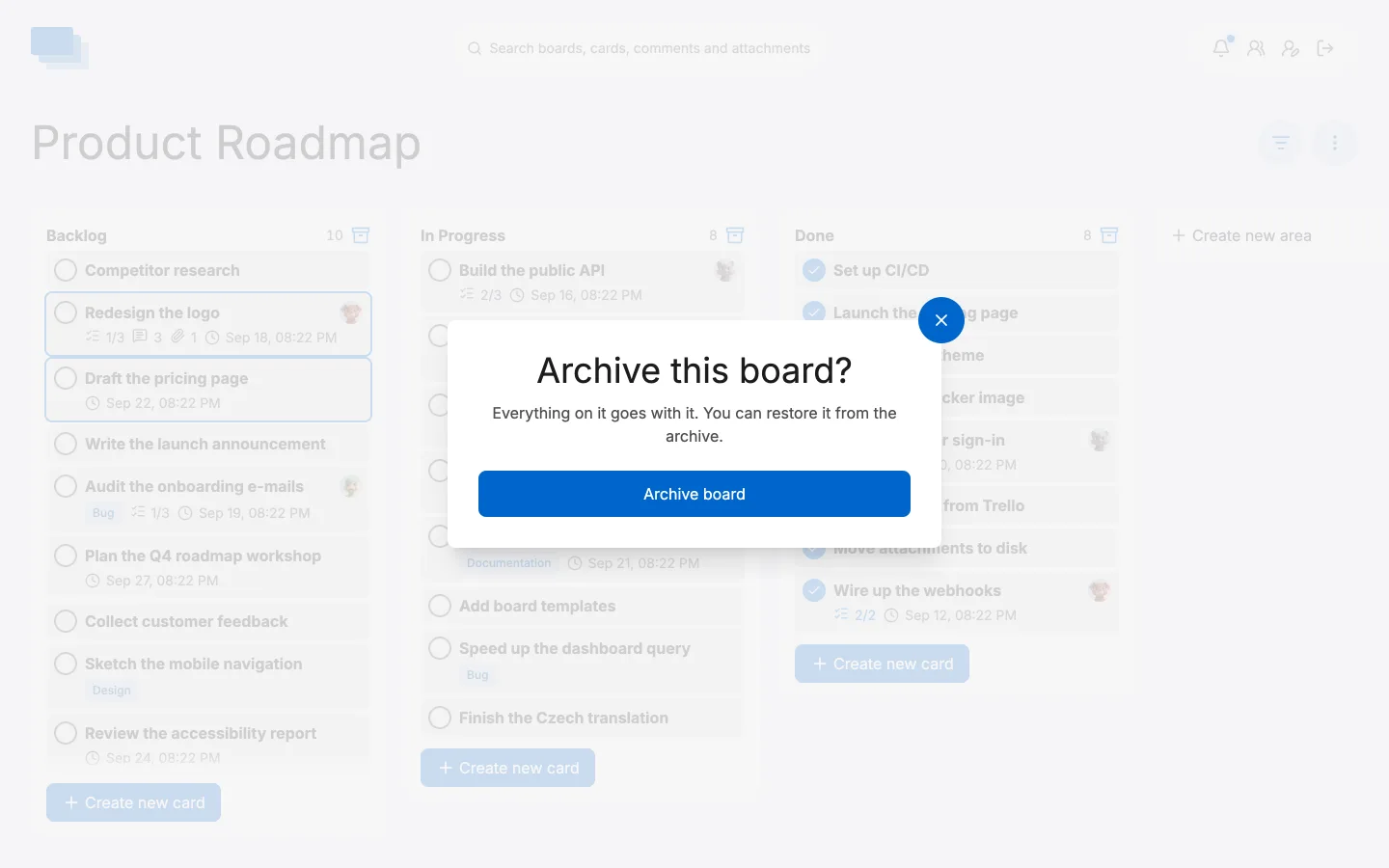
Nothing is destroyed. ⋮ › Recently archived on the dashboard lists what you have archived and puts it back. An archived board still opens from a link or a bookmark — it says at the top that it is archived, and its owner can restore it from there.
The same applies inside a board: the button on an area's header archives the area with the cards in it, and Archive card on an open card archives that one. Both are listed in ⋮ › Recently archived on the board, with the date they were put away, and both come back exactly as they were.
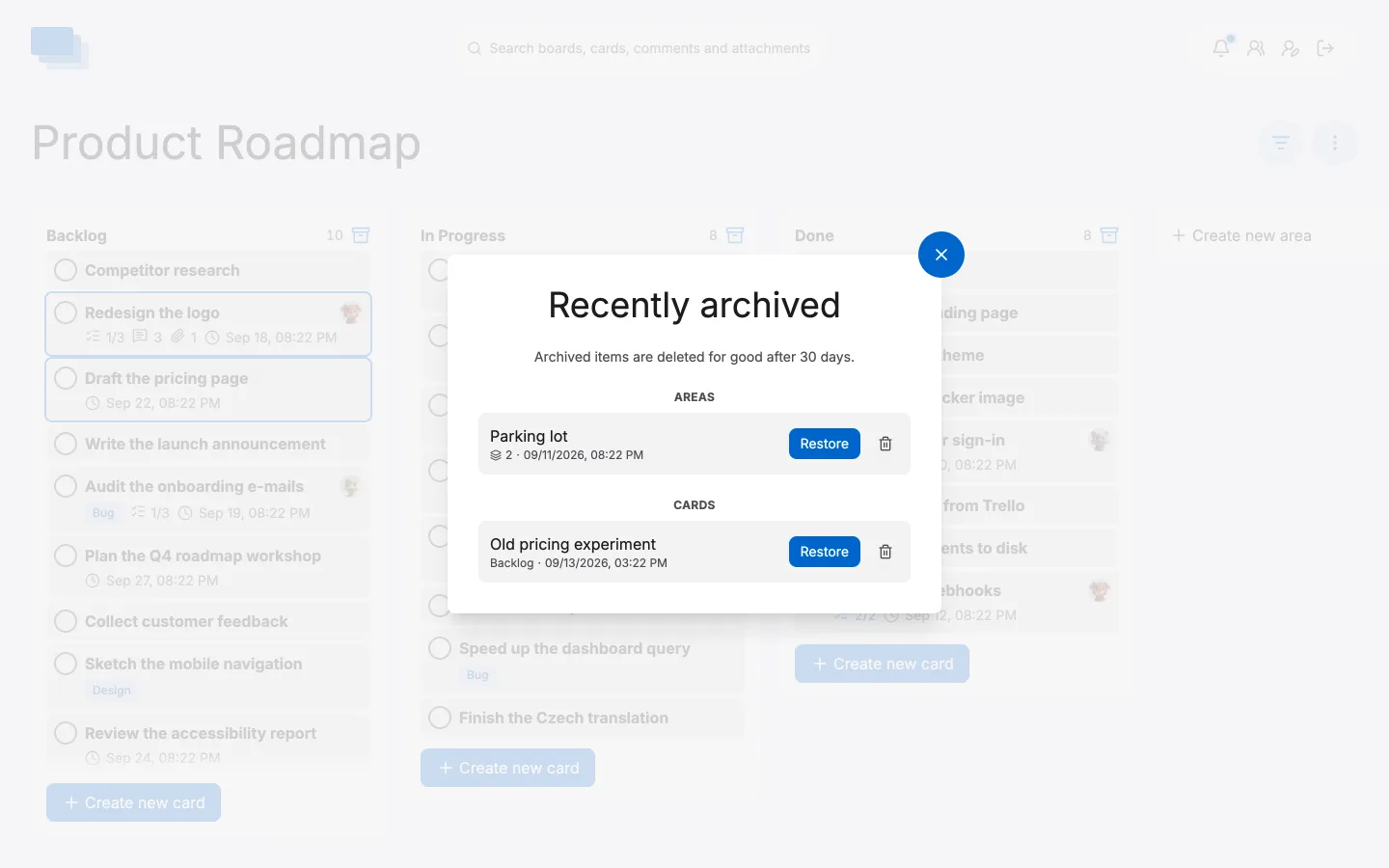
Deleting something outright is still possible, and it lives in the archive: the bin beside an entry removes it and everything belonging to it for good. That one cannot be undone, which is why it is the only place in the app you will find it.
The archive empties itself after 30 days. It says so at the top, and the clock starts when a thing was archived rather than when it was made. Thirty days is long enough that a mistake is recoverable well after anybody notices it, and short enough that an instance does not quietly fill with work somebody threw away last year — a card that goes takes its attachments and their files with it.
Whoever runs the instance can change that with NUXT_ARCHIVE_RETENTION_DAYS —
90 for a quarter, say. Set it to 0 to keep archived things for ever,
which is how the archive behaved before v0.37.0. Anything archived under an
earlier version is subject to the window from the moment this one runs, dated
from when it was archived.