Cards
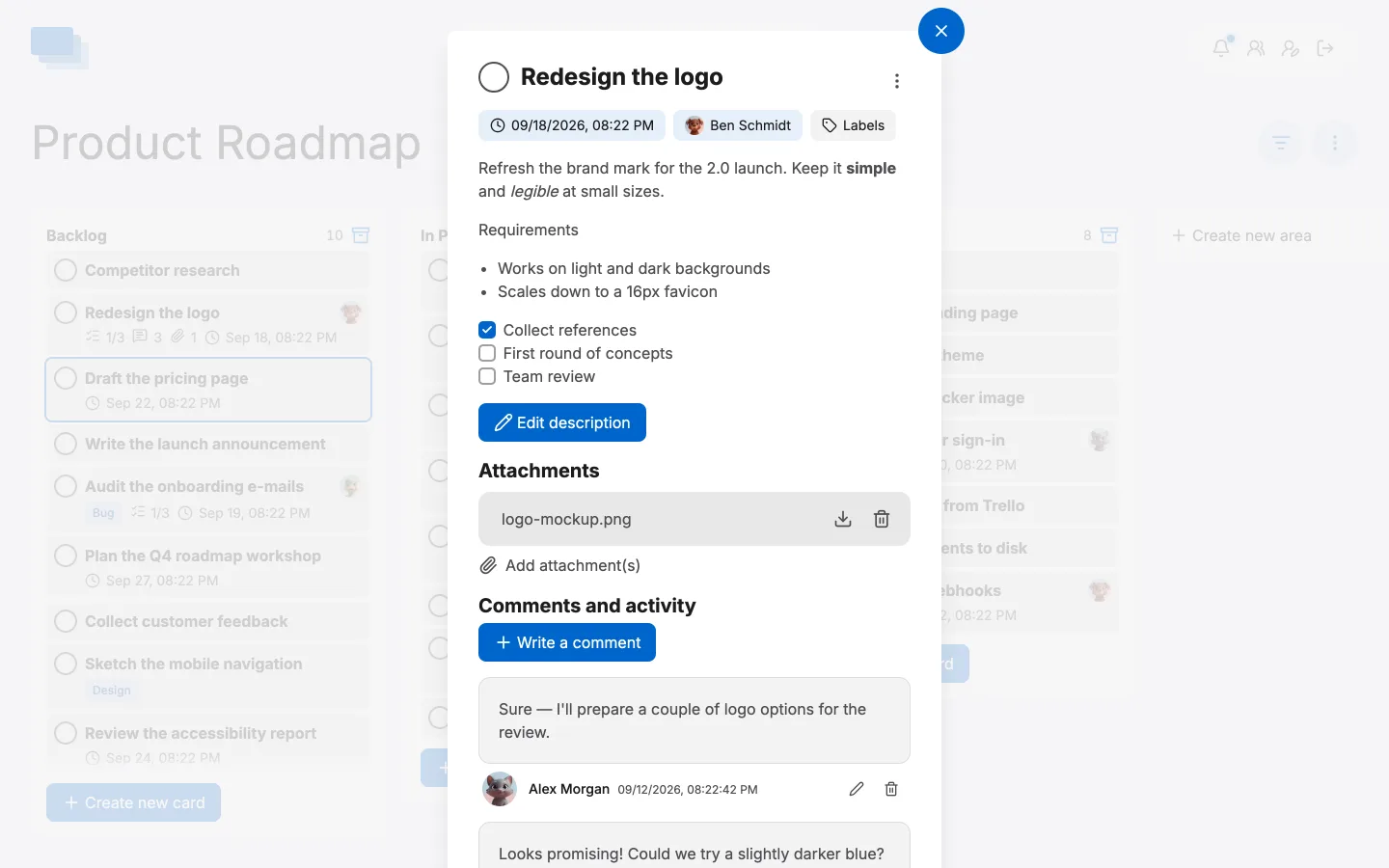
A card is one piece of work. It lives in an area, and everything about it — the description, who is doing it, when it is due, what has been said about it and whatever files belong to it — is on the card itself.
Creating a card
Click Create new card at the bottom of an area, type a title and save. That is enough; a card with nothing but a title is a perfectly good card.
Opening a card
Click it. Everything else happens in the card itself.
The description
The description takes Markdown, so it holds more than a paragraph: headings, bold and italic, bullet lists, links — and checklists.
Refresh the brand mark for the 2.0 launch. Keep it **simple** and _legible_ at
small sizes.

### Requirements

- Works on light and dark backgrounds
- Scales down to a 16px favicon

- [x] Collect references
- [ ] First round of concepts
- [ ] Team review
A - [ ] line becomes a checkbox you can tick, and the card counts them for you:
the card's tile on the board shows 1/3 and keeps the number up to date as the
boxes are ticked. There is nothing to switch on — it is the ordinary Markdown you
already wrote.
Due dates and who is doing it
Set a due date and it appears on the card's tile, so the board shows what is coming without anybody opening anything. Put somebody on the card and their avatar appears on it — or several people, since not every job is one person's: each name in the Assignee menu puts that person on or takes them off, and the menu stays open for the next. Unassigned at the top takes everybody off. Somebody put on a card by someone else is told about it; nobody is told about a card they took on themselves.
Everything assigned to you comes together under My work, the dashboard's
second view — beside Boards in its heading, or in the switch under it on a
phone. It lists your open cards from every board
you are on, grouped into Overdue, This week and Later, each with the
board and area it sits on; click one and it opens on its board. Done and
archived cards are not in it, and neither is anything on a board you have left.
It has an address of its own, /dashboard/?view=mine, if you want to bookmark
it.
The switch is only there while there is something in it. With no open card assigned to you the dashboard is just Boards, as it always was, and My work turns up the next time you open the dashboard after something is assigned.
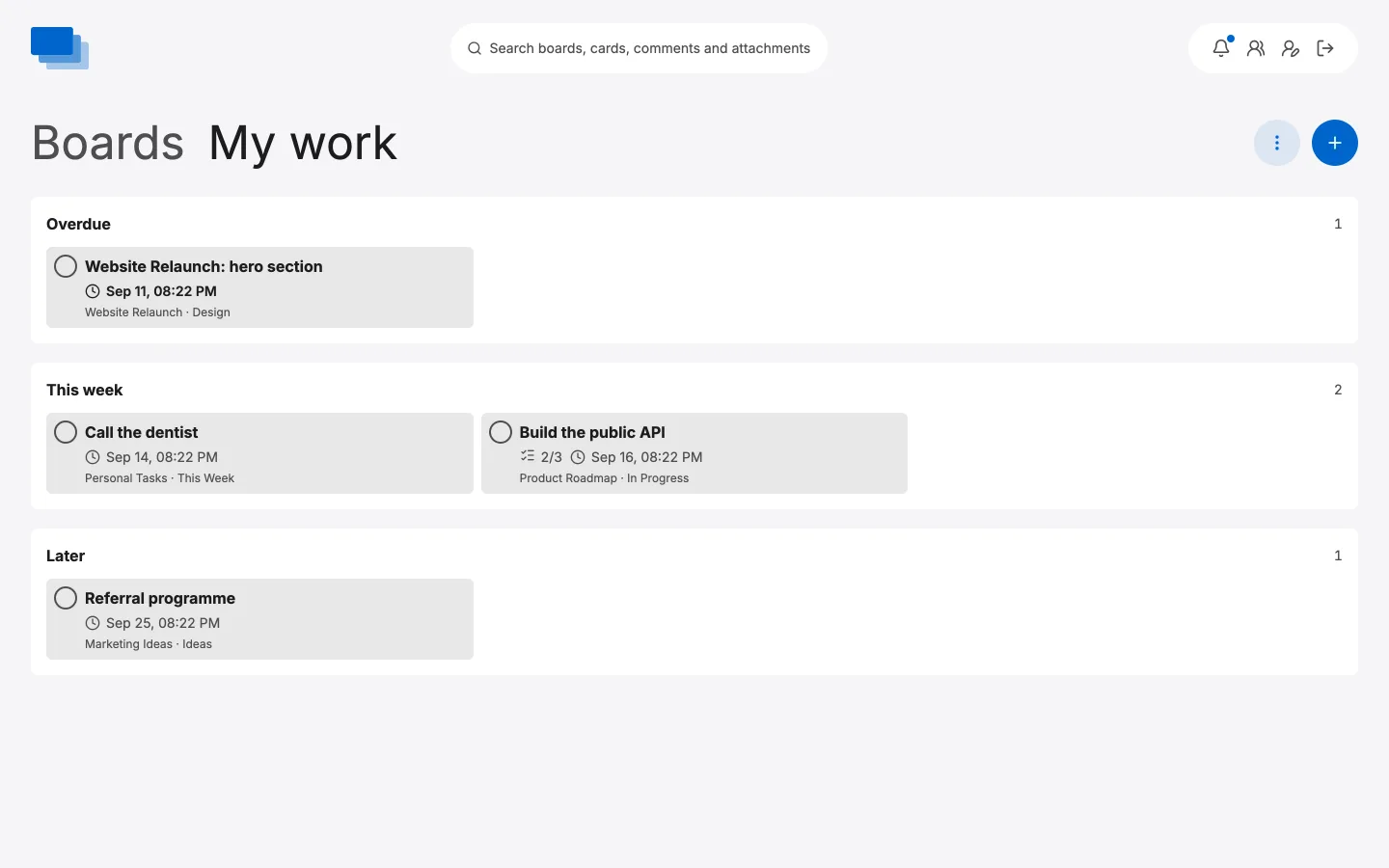
On My work, ⋮ › Export as spreadsheet downloads the list as a CSV file, with the board each card is on — the same columns as a board's spreadsheet.
Labels
Give a card labels — a short word like Bug, Blocked or Design — and they appear on the card under its buttons and on its tile, so a board says what kind of work it is holding at a glance.
Labels, in the card's row of buttons, adds one. Type the word; anything the board is already using is offered under the field, and picking it there is the same as typing it out — the same word is the same label, so a board never ends up with three spellings of Bug.
The labels themselves sit on the line under those buttons, and that is where you change them: click the word to reword it, or the cross at its end to take it off. Both act on the card you are on — rewording points that card at a different word and leaves every other card alone. A word no card uses any more stops being offered.
A label is one of the words a card can be found by: searching for Bug turns up the cards marked Bug, alongside the ones whose name or description mentions it, and each hit shows its labels.
Adding, rewording or removing a label is written into the card's history, under Comments and activity, and everybody else looking at the board sees the change as it happens.
Every label is drawn in the same colour, so a board reads by what its labels say rather than by a code you have to remember. Adding or changing one needs permission to edit the board; anyone who can see the board sees the labels.
Attachments
Add files to a card with Add attachment(s). They are stored on your own server, alongside everything else.
Images open in a lightbox when clicked, so a screenshot attached to a bug report is one click from being readable:
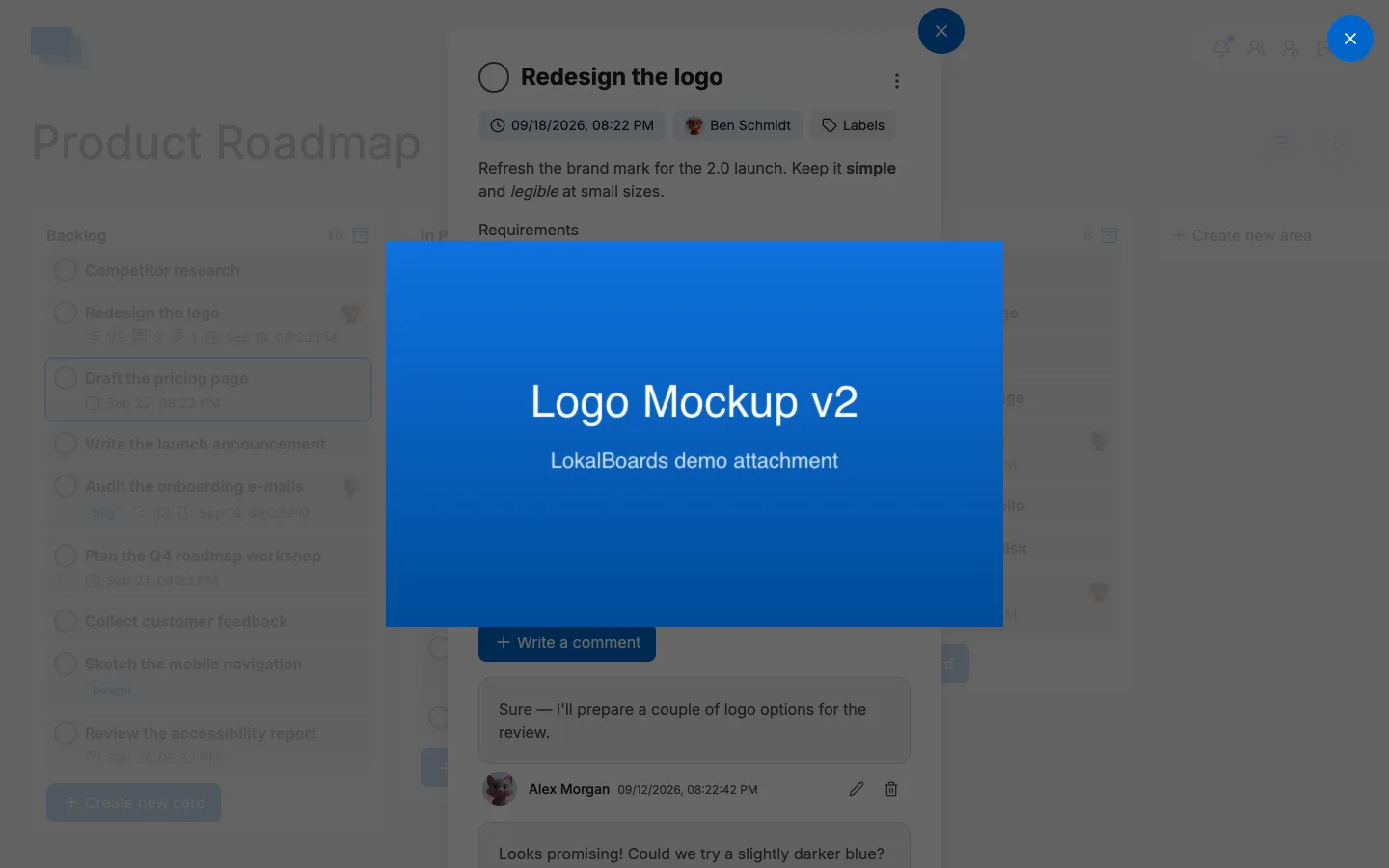
Anything that is not an image or a PDF downloads instead of trying to open in the browser — a spreadsheet is a file you want on your disk, not a tab full of characters.
Marking a card done
The circle beside the card's title is its status. Tick it and the circle fills; the card reads as finished wherever it appears, whichever area it happens to be sitting in.
Repeating cards
Some work comes round again: the weekly report, the monthly invoices, the yearly review. Give the card a due date, then pick how often it comes back under Repeat in the same menu — every day, week, two weeks, month or year. The tile shows a small ⟳ beside the date.
Nothing happens until the card is marked done. Then it stays as it is — done, the record of that time — and the next one appears:
- where the series started — at the bottom of the area the card was in when it was set to repeat, even if it was moved along to "Done" before being ticked off
- due at the next date in the series after today. Done early, that is simply the next date; done late, the dates that have already gone by are skipped rather than turned into overdue cards
- with its checklist unticked, and with the same title, description, labels, people and reminders. Comments and attachments stay with the card they belong to
A card due on the 31st comes back on the last day of shorter months and on the 31st again when there is one; a card due on the 29th of February comes back on the 28th in other years. Dates are counted on the instance's own clock, so a card due at nine stays due at nine when the clocks change.
The series moves on to the new card, so the one that was done no longer repeats — ticking it off and on again does not put a second card on the board. To stop a series, set Repeat back to Does not repeat, or remove the due date.
Moving a card
Drag a card to another area or another position to move it — it saves as you drop it.
Duplicating and deleting
The ⋮ button at the top of an open card holds both:
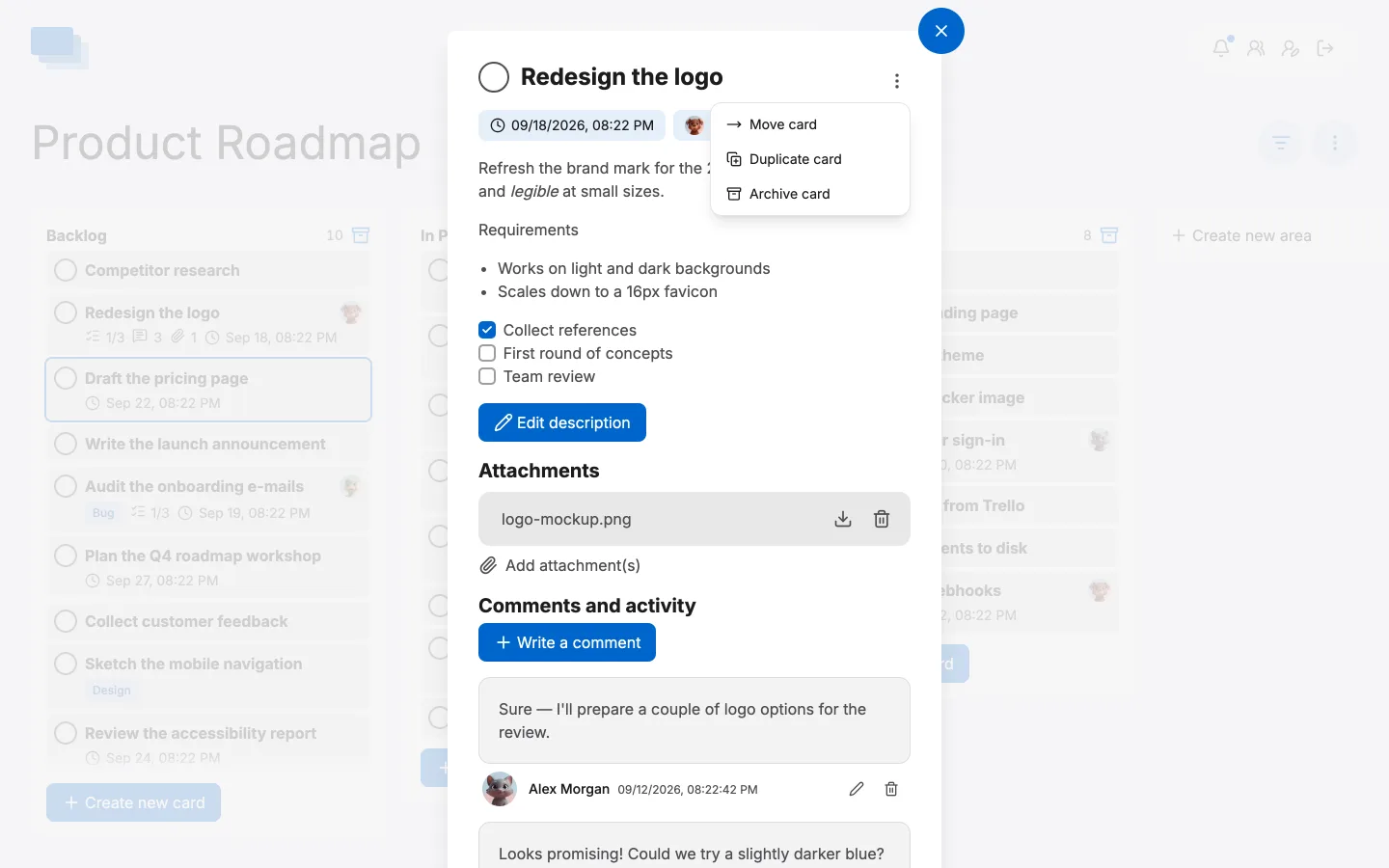
Duplicate card makes a second copy directly underneath the original, with the title, the description and its checklist, the due date with its reminders and how it repeats, the people on it, the done state and the attachments. Comments are not copied — they are a conversation about one card, and they stay on the card they were written on. Attached files are copied properly rather than shared, so deleting the copy's attachment never touches the original's file.
It is the quickest way to work from a card as a template: build the checklist once, then duplicate it for each new job and change what differs.
Archive card takes it off the board after a confirmation. Nothing is destroyed: the card keeps its description, comments, attachments, labels and history, and ⋮ › Recently archived on the board lists it and puts it back. Deleting a card for good is done from there.
What the tile tells you
The tile on the board is a summary of everything above, so you rarely have to open a card to know where it stands:
- the status circle, filled when it is done
- 1/3 — ticked checklist items out of the total
- a comment count and an attachment count
- the due date, with ⟳ when the card repeats
- the avatars of the people on it — overlapping when there are several, with all their names on hover — and of anyone reading it right now