MCP Server
LokalBoards speaks the Model Context Protocol, so an assistant can work a board directly: read it, create and move cards, tick things off, write comments. Everything the interface does, through an API key you issue or a connection you approve — and either can be revoked at any time.
Connecting
Point your MCP client at /mcp on your instance and give it a key:
{
  "mcpServers": {
    "lokalBoards": {
      "url": "https://boards.example.com/mcp",
      "headers": {
        "x-api-key": "YOUR-API-KEY"
      }
    }
  }
}
Issue the key in Settings › API keys. A key can be marked read-only, in which case every tool that would change something is refused — the safest way to let an assistant look at a board without being able to touch it.
The same key is accepted two ways, because clients differ in what they can send:
x-api-key: YOUR-API-KEY
Authorization: Bearer YOUR-API-KEY
The server can be turned off entirely with NUXT_MCP=false.
Claude
Claude Code takes the server in one command:
claude mcp add --transport http lokalboards https://boards.example.com/mcp \
  --header "x-api-key: YOUR-API-KEY"
Claude Desktop uses the mcpServers block above, in its own configuration
file.
claude.ai connects through Settings › Connectors › Add custom connector,
where you give it the /mcp URL. Sending a fixed API key with it is a beta
feature there and the credential is entered once for a whole organisation, so
everyone in that organisation would act as the one LokalBoards user whose key it
is. For anything but a single-person instance, connect from Claude Code or the
desktop app instead, where the key is yours alone.
LokalBoards is not in Claude's connector directory. That directory is discovery, not capability — a custom connector has exactly the same tools.
Mistral Le Chat
Connectors › + Add Connector › Custom MCP Connector, then give it a name and
the /mcp URL of your instance.
Le Chat sends credentials as an Authorization header rather than an
x-api-key one, which is why LokalBoards accepts the key both ways: paste it as
a bearer token and the connection works.
OpenAI
Through the API, LokalBoards is a tool on a request. The authorization
value is sent as a bearer token, which the server accepts as a key:
const response = await openai.responses.create({
  model: "gpt-5",
  tools: [
    {
      type: "mcp",
      server_label: "lokalboards",
      server_url: "https://boards.example.com/mcp",
      authorization: process.env.LOKALBOARDS_KEY,
      require_approval: "never",
    },
  ],
  input: "What is left in the Backlog area of my Product Roadmap board?",
});
ChatGPT itself wants OAuth rather than a key, and gets it — see
Connecting with OAuth below. Add a custom connector
pointing at https://boards.example.com/mcp, leave the client configuration
empty, and ChatGPT works the rest out for itself: it will send you to your own
instance to sign in and ask whether to allow it.
Connecting with OAuth
Some clients will not send a key at all. ChatGPT is the one that matters: its custom connectors offer OAuth or nothing, so for a long time a LokalBoards instance simply could not be added to it. Your instance is now an OAuth authorization server as well as an MCP server, and needs no configuration to be one.
What a client does, all of it automatic:
- It calls
/mcpwith no credentials and is refused, with a header naming where to look. - It reads
/.well-known/oauth-protected-resource, which names this instance as the authorization server. - It reads
/.well-known/oauth-authorization-serverfor the endpoints. - It identifies itself — most clients by publishing a metadata document at an HTTPS URL, which is their client identifier, so there is nothing to register and no secret to store.
- It sends you to
/oauth/authorize. You sign in if you are not already, and decide. - It exchanges the result for a token and uses it as a bearer token from then on.
Adding the connector in ChatGPT
- Settings › Connectors › Create (custom connectors are a paid-tier feature; they are not offered on the free plan).
- MCP server URL:
https://boards.example.com/mcp— your own address, with/mcpon the end. - Authentication: OAuth. Leave the client ID and client secret empty — ChatGPT identifies itself by publishing its own metadata document, so there is nothing to paste and nothing to create on this side.
- ChatGPT sends you to your instance. Sign in if you are not already, decide on the consent screen, and you are connected.
Everything else is discovery, and it happens without you.
What you are agreeing to
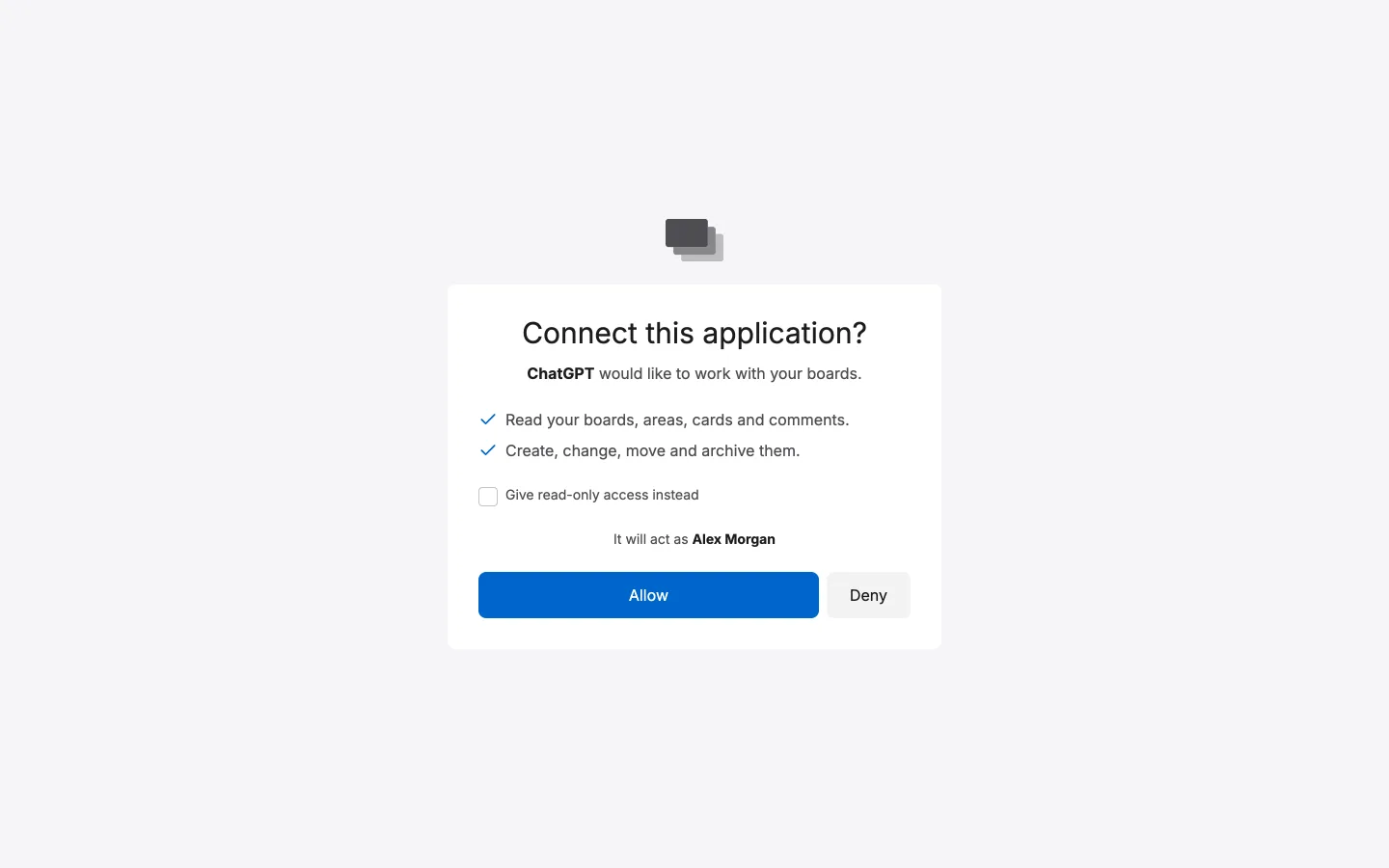
The consent screen names the application and what it will be able to do, and it acts as you — it sees exactly the boards you see, and nothing else on the instance. Two permissions exist, and they are the ones an API key already has:
| Read | Your boards, areas, cards and comments. |
| Write | Creating, changing, moving and archiving them. |
A connector that asks to write can be given read-only access instead, from the consent screen. It cannot ask for more than that, and the screen can only narrow what was asked for, never widen it.
It is per person, like an API key
A connection belongs to whoever made it. Everybody who wants to use ChatGPT with their boards adds the connector themselves, signs in as themselves, and decides for themselves — it is the same model API keys already follow, with the choice moved from "when you create the key" to "when you allow the application".
| API key | A connected application | |
|---|---|---|
| Acts as | whoever made it | whoever allowed it |
| Read-only chosen | when creating the key | on the consent screen |
| Managed in | Settings › API keys | Settings › Connected apps |
| Revoking takes effect | at once | at once |
Three things worth knowing:
- There is no instance-wide policy. An administrator cannot require every
connection to be read-only, or allow API keys while forbidding OAuth. The only
switch that covers everybody is
NUXT_MCP=false, which turns the MCP server off entirely. - Changing your mind means reconnecting. There is no way to downgrade a connection that already has write access; disconnect it and allow it again with read-only ticked.
- In a shared ChatGPT workspace the connector's configuration may be shared, but the authorization is not. Each person still signs in here and gets their own token against their own account.
Managing what is connected
Settings › Connected apps lists every application you have allowed, when you allowed it and when it was last used. Disconnect revokes its tokens immediately and forgets the agreement, so the next attempt asks you again.
What your instance needs
Only that it is reachable from the client. Everything the server publishes about
itself is built from NUXT_BOARDS_URL, so that has to be the address the client
will actually use — a public HTTPS one for ChatGPT, which cannot reach a machine
on your desk. Everything else — keys, storage, rotation — is already there.
Access tokens last an hour and refresh tokens thirty days, with refresh tokens rotated on every use. Tokens are stored hashed, exactly as API keys are, and a token is only ever valid for this instance's own MCP endpoint.
Anything else
Every other MCP client — Cursor, Zed, VS Code, an agent of your own — needs the same three things, and nothing more:
| Transport | Streamable HTTP |
| URL | https://boards.example.com/mcp |
| Auth | x-api-key or Authorization: Bearer, carrying the key — or OAuth |
If a client can set a request header, it can use LokalBoards with a key. If it insists on OAuth instead, it gets that too: leave the key out, and it is sent through Connecting with OAuth like ChatGPT is.
A quick check that a key works before you go looking for the fault in a client:
curl -s -X POST "https://boards.example.com/mcp" \
  -H "Authorization: Bearer $LOKALBOARDS_KEY" \
  -H "Content-Type: application/json" \
  -H "Accept: application/json, text/event-stream" \
  -d '{"jsonrpc":"2.0","id":1,"method":"tools/list"}'
A list of tools means the instance, the URL and the key are all good.
Give the agent its own account
Create a user for the assistant rather than handing it a key issued to a person, and mark that account as an AI agent in the admin screens. Its actions then carry a bot icon everywhere they appear, so a card moved or a comment written by an assistant is never mistaken for a colleague's work. Invite that account to the boards it should see, exactly as you would a person — which is also how you keep it out of the ones it should not.
What it can do
Twenty-six tools, in the shape of the app rather than of the database:
| Boards | listBoards, getBoard, getBoardTree, createBoard, updateBoard, deleteBoard, listBoardMembers |
| Areas | listAreas, getArea, createArea, updateArea, deleteArea, moveAreas |
| Cards | listCards, getCard, createCard, updateCard, deleteCard, moveCard, orderCard, searchCards |
| Comments | listComments, writeComment |
| Coordination | claimCard, releaseCard, whoami |
getBoardTree is usually the one to reach for first: it returns a board with its
areas and their cards in a single call, which is the whole context an assistant
needs before deciding anything.
Two agents on one board
claimCard puts the calling account on a card, but only if nobody is on it
yet — even at the same moment, two agents claiming one free card never both get
it. It answers claimed: true if the card is now yours, or claimed: false
with heldBy naming who has it — in which case the agent should take a different
card. releaseCard takes the agent off one it abandons unfinished, and leaves
anybody else on it alone.
A card can be on several people. Cards carry assigneeIds, everyone on them in
the order they were added, and assigneeId, the first of them, for agents
written before that; createCard and updateCard take assigneeIds to set
them.
That is what keeps two assistants, or an assistant and a person, from quietly doing the same piece of work twice.
Everything shows up live
An agent's changes travel the same path as anybody else's: a card it moves slides across the board for everyone watching, and a comment it writes appears without a refresh. There is no separate agent world to reconcile afterwards.